Intercom Channel Setup
Intercom is one of the core channels supported in the current Jardine dashboard, and for many teams it is the fastest way to get live conversational support traffic flowing through AI-assisted handling.
A reliable Intercom setup is not just “connect account and done.” You want three things working together: connection status, inbound event flow, and predictable conversation behavior after events arrive.
What You Configure in the Intercom Tab
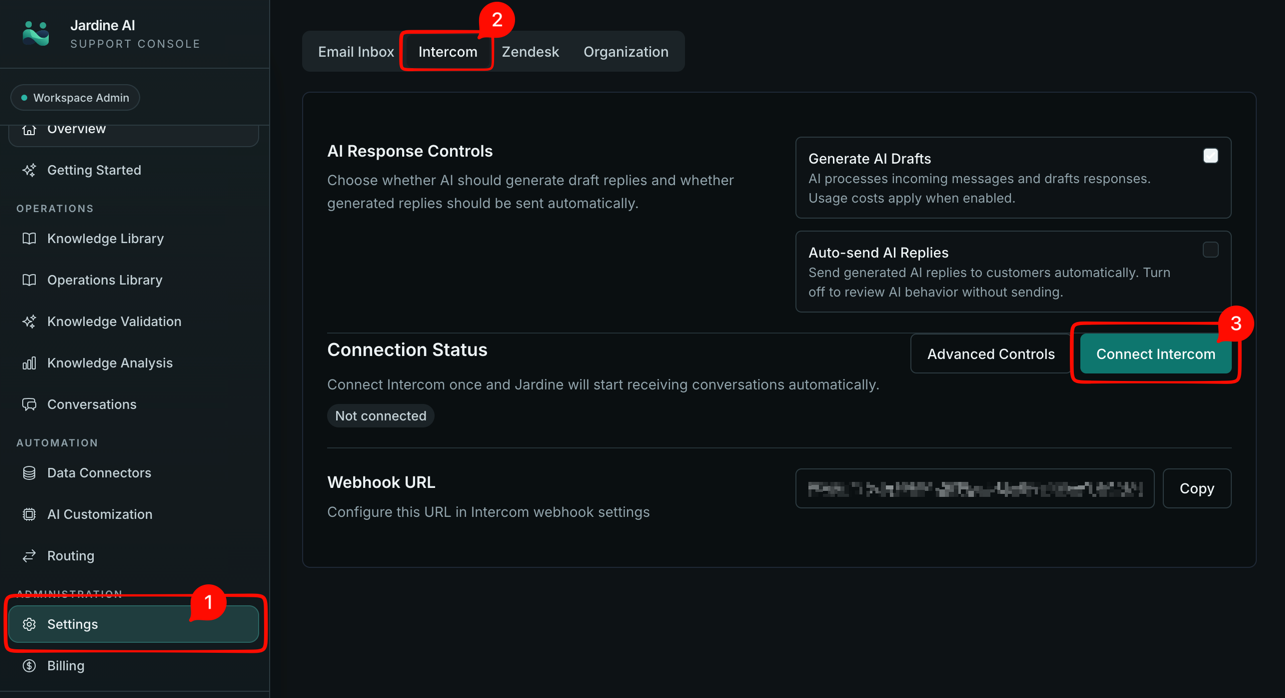
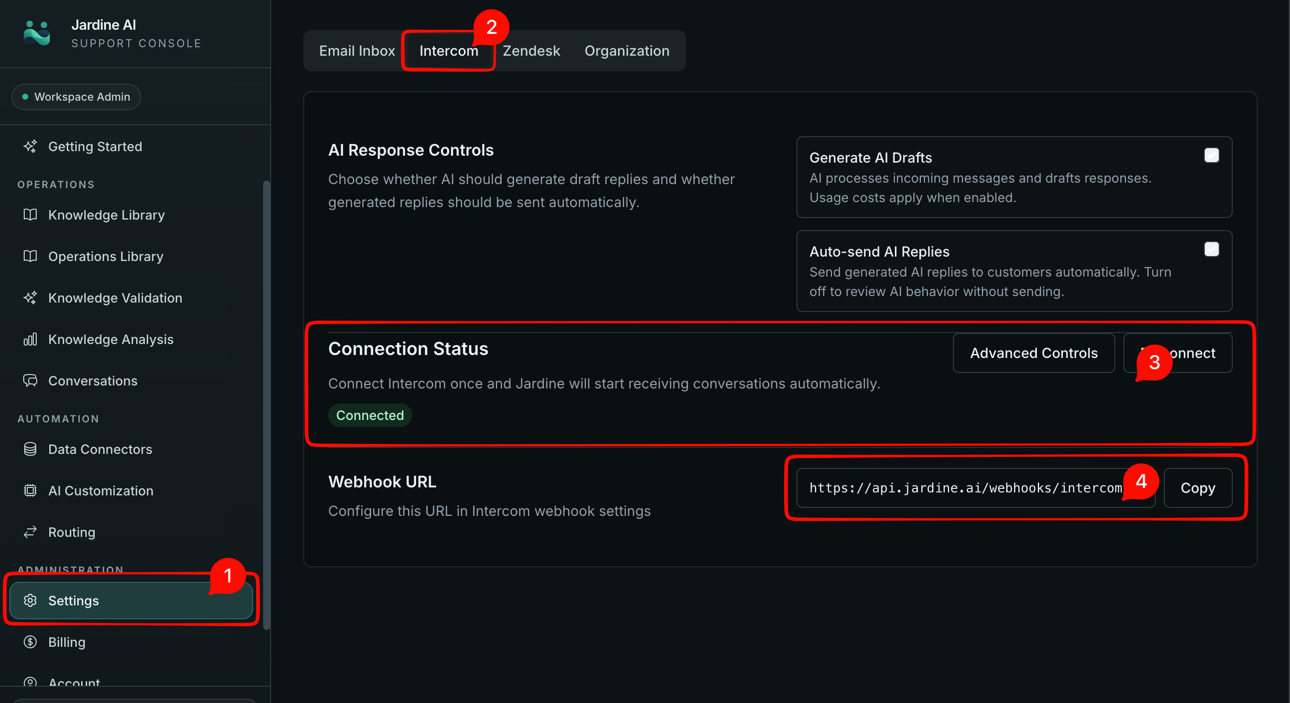
In Settings -> Intercom, you can connect through OAuth and also use manual token controls where needed. After connection, you can inspect status, copy the webhook URL for your organization, and confirm that traffic is being accepted correctly.
There is also an advanced control mode in the same screen. Advanced mode exposes additional routing controls such as strict mode behavior, fallback workspace configuration, and routing profiles with condition-based matching.
For most teams launching Intercom for the first time, you do not need advanced mode immediately. Start with baseline connection and message flow verification first.
Recommended Setup Sequence
A practical setup flow that reduces surprises is:
- Connect Intercom in the Intercom settings tab.
- Confirm connection status is healthy.
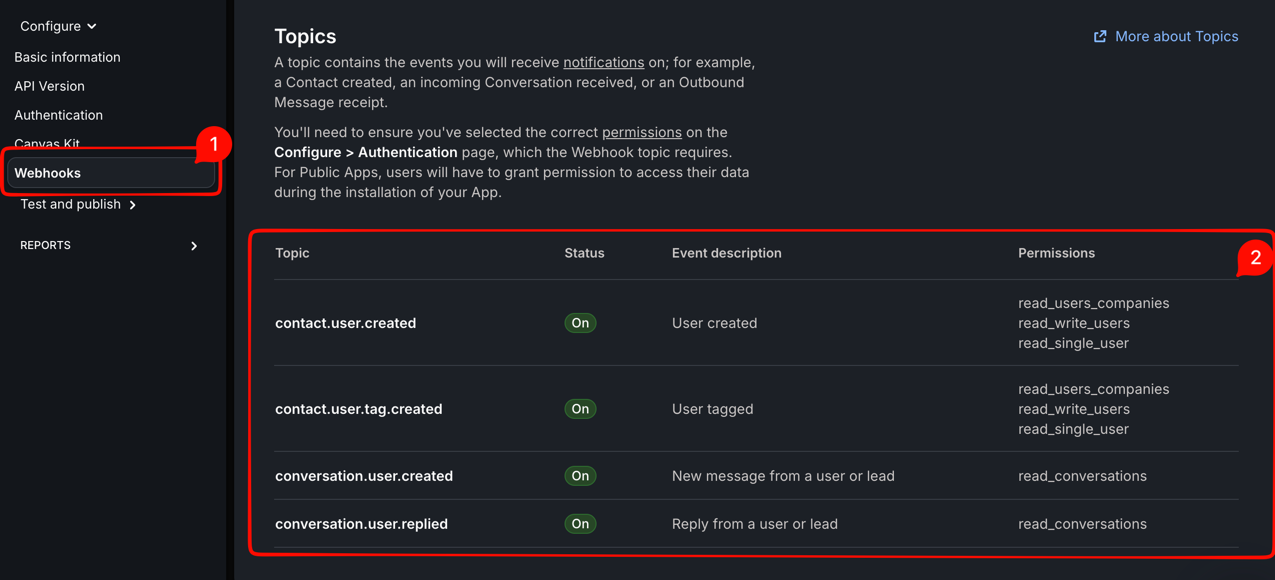
- Copy and configure the org-specific webhook URL where required.
- Send controlled test messages from Intercom.
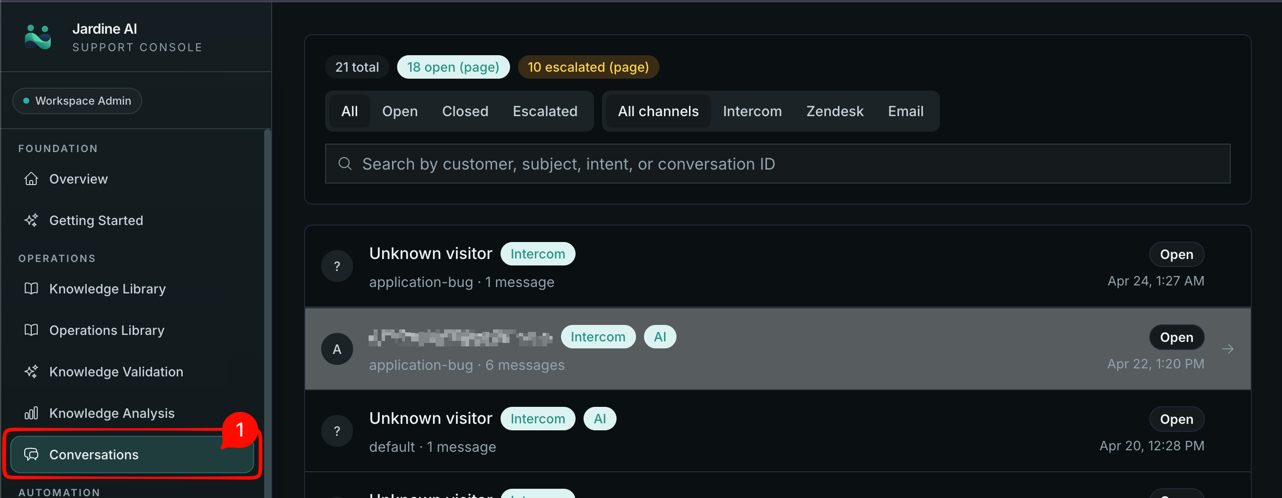
- Verify resulting conversations in Jardine.
In testing, include both simple and sensitive conversation types. You want to confirm not only that messages arrive, but that handling outcomes make sense for your support policy.
A simple launch test might include a plan FAQ. A sensitive test might include a billing dispute or account access issue where escalation is expected.
Understanding Advanced Controls (When You Need Them)
Intercom advanced controls are useful when your team needs explicit policy behavior beyond defaults.
Strict mode helps avoid ambiguous profile matches by applying tighter handling logic. Fallback workspace configuration provides a default handling context when profile matching does not resolve as expected. Routing profiles let admins define condition-based mappings that determine where specific conversation patterns should route.
These controls are powerful, but they also add operational complexity. If you enable them, document your intended behavior and test each profile with realistic message examples. Unclear profile logic can cause silent routing confusion that looks like classifier instability when the issue is really configuration overlap.
In organizations currently operating in single-workspace mode, profile controls are still visible but should be designed with that active operating model in mind.
How Intercom Conversations Behave in Operations
Once ingress is stable, Intercom conversations appear in the same Conversations area as other channels. This is where you inspect status, intent, confidence, escalation context, and ownership state.
Ownership control is especially important in live operations. If a conversation needs human takeover, assign ownership to human. If a routine thread can return to AI, you can assign ownership back to AI. This keeps control explicit instead of implicit.
That explicit ownership model is one reason teams can run mixed AI-human support safely without losing thread accountability.
Common Issues and Fast Diagnosis
The first common issue is successful connection with missing inbound conversations. Diagnose this as an ingress problem first: verify webhook setup and status behavior, then retest with fresh messages.
The second issue is conversations arriving but escalating more than expected. Diagnose policy and context: inspect routing behavior, check whether required knowledge context exists, and confirm whether the message type should actually be human-handled by design.
The third issue is unexpected behavior after enabling advanced controls. Diagnose profile logic: check condition overlap, fallback assumptions, and strict mode impact before changing unrelated settings.
The fourth issue is team confusion over control. Diagnose process: make ownership transfer and escalation expectations explicit across support leads and agents.
Launch Advice
Start simple. Connect Intercom, verify ingress, test realistic messages, and confirm conversation outcomes. Only then expand into advanced profile controls if your operational policy truly requires them.
Teams that launch Intercom successfully usually keep one principle in mind: connection status is necessary, but behavior verification is what makes setup production-ready.
If you follow that principle, Intercom becomes a dependable live channel rather than a brittle integration point.
When Intercom is stable, continue with Routing Overview to tighten escalation logic, or Knowledge Validation to improve answer quality before expanding traffic.